Search...
Overview

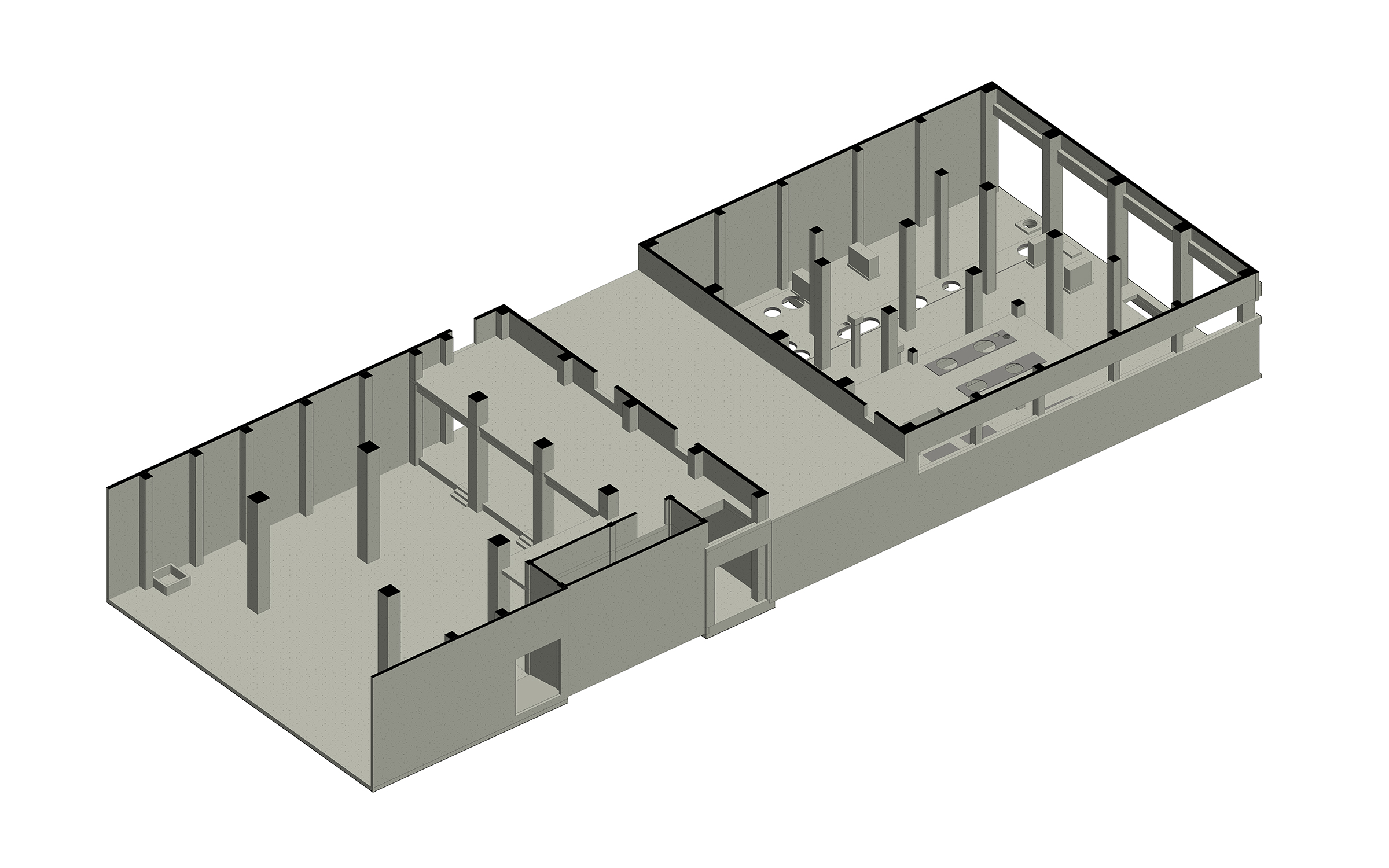
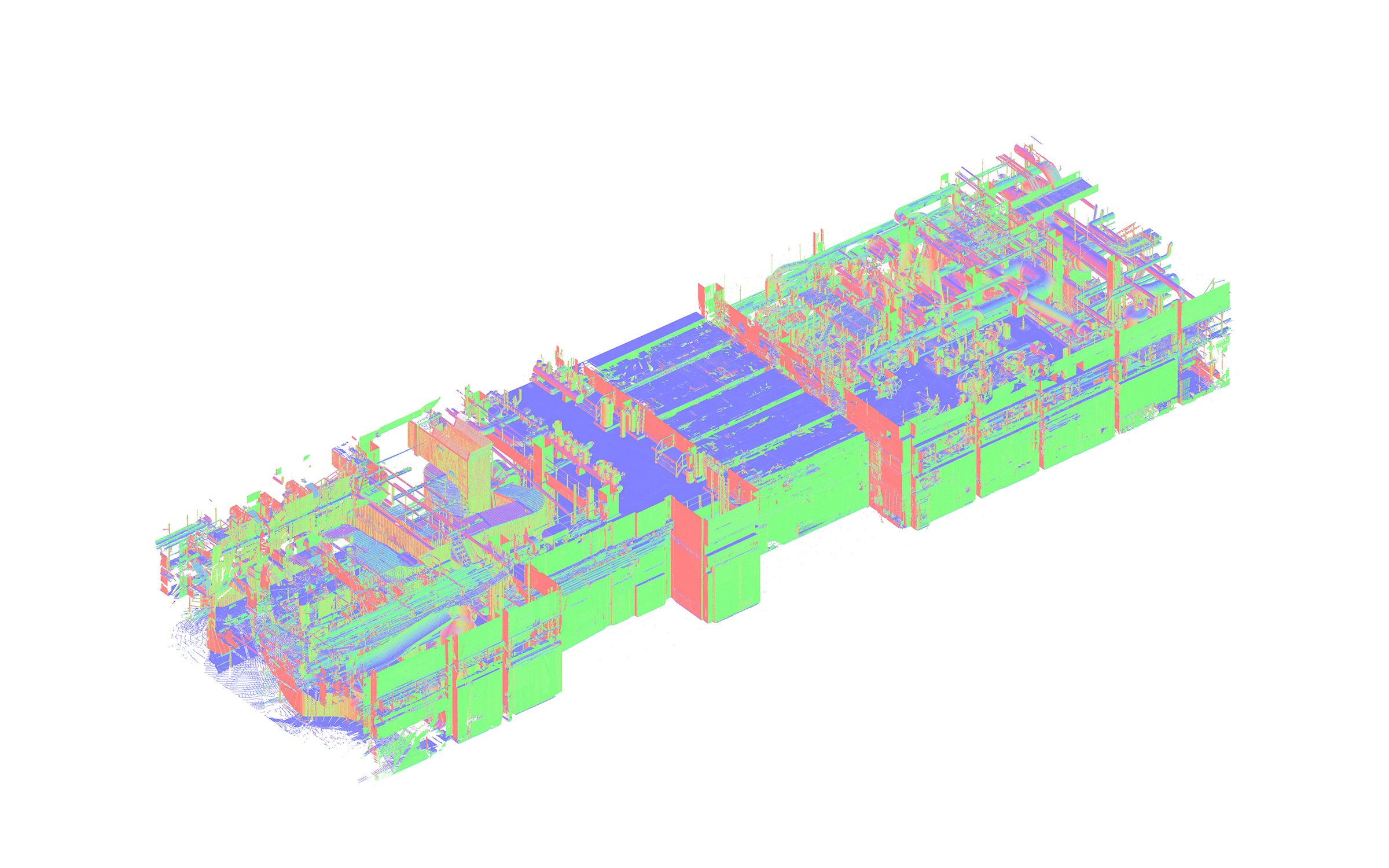
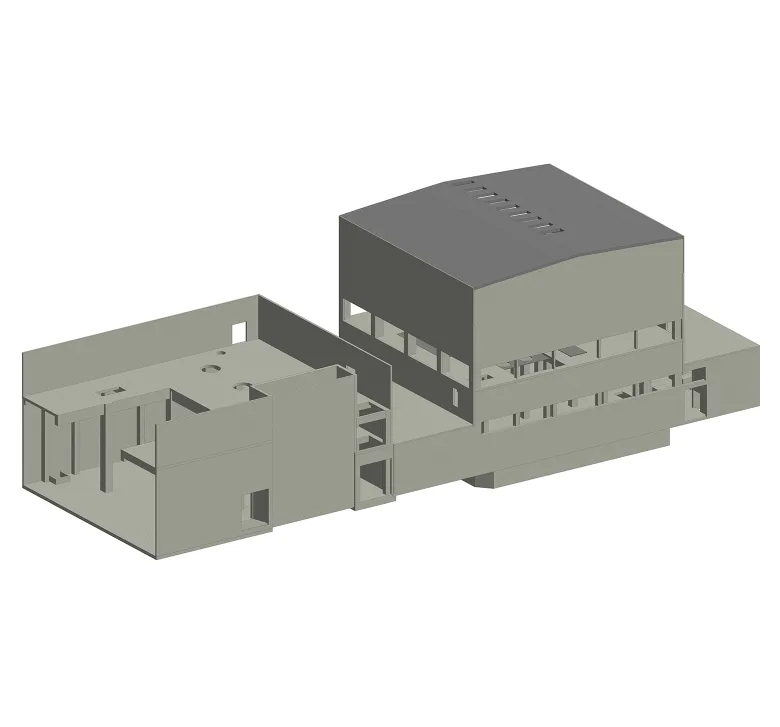
This project involved creating an as-built 3D model of an industrial energy facility located in Tampere, Finland. The facility covered approximately 8,000 m² (around 86,000 sq ft) and required a clear architectural and structural representation based on point cloud data and supporting documentation.

The scope focused specifically on the building itself: walls, floors, columns, beams, openings, stairs, ramps, and other structural or architectural elements. Existing equipment and MEP systems were intentionally excluded from the model, which made it especially important to distinguish the required building elements from the dense industrial environment captured in the scan.

As a result, ORIGIN delivered a structured Revit model that accurately represented the facility’s architectural and structural conditions and could serve as a reliable basis for further renovation, coordination, and project development.

Category: BIM, STRUCTURE
Services:Scan-to-BIM
Industry:Infrastructure
Object type:Power and Energy
Area:8000 m² / 86120 ft²
Tools used:Autodesk Revit, Autodesk ReCap
Share:
Project stages
1. Receiving and reviewing input files
2. Defining the modeling approach
3. Modeling walls and floor slabs
4. Modeling concrete columns
5. Adding structural beams
6. Modeling secondary elements: ramps, stairs, and openings
7. Completing the architectural and structural model
8. Performing quality checks
9. Delivering the final Revit model to the client
Scope of work

The scope of work included developing a 3D Revit model from point cloud data, focused strictly on architectural and structural elements. Existing equipment and MEP systems were excluded from the model according to the project requirements.


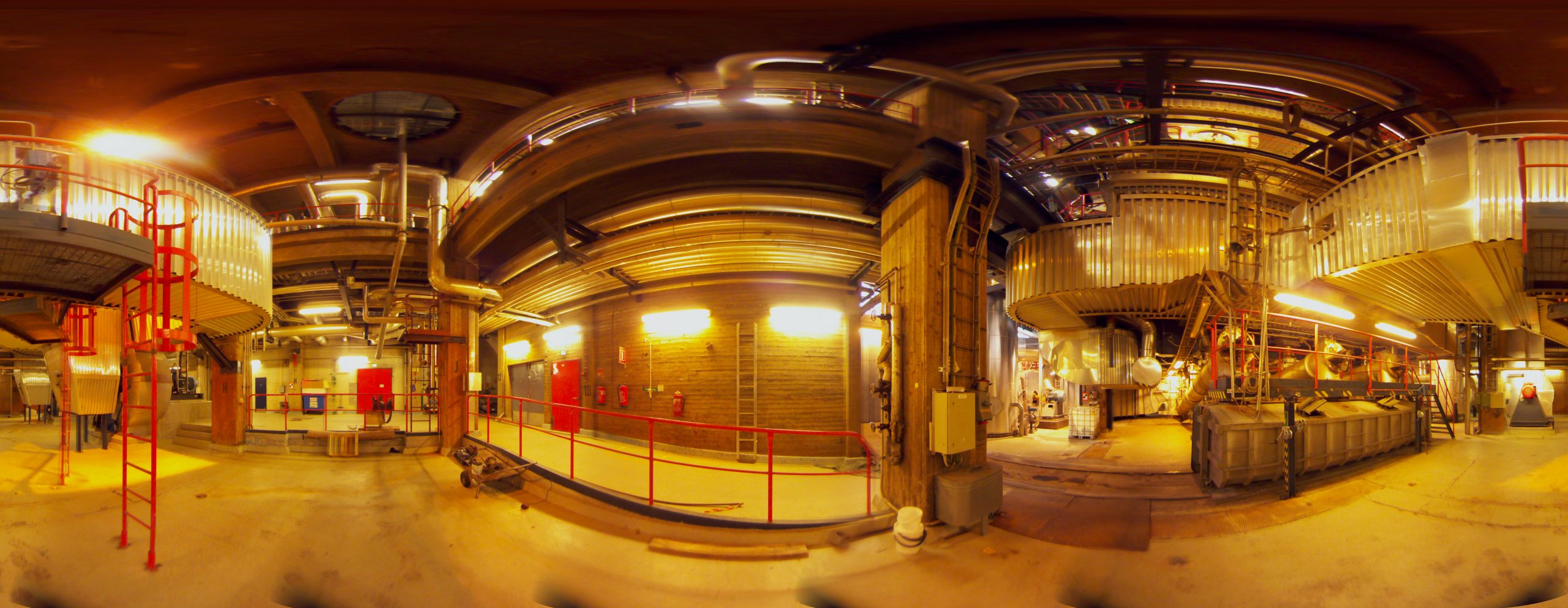
Input: Point cloud data, 360° photos, drawings, and supporting materials.

Output: 3D model in Revit.


1
1

Point cloud complexity

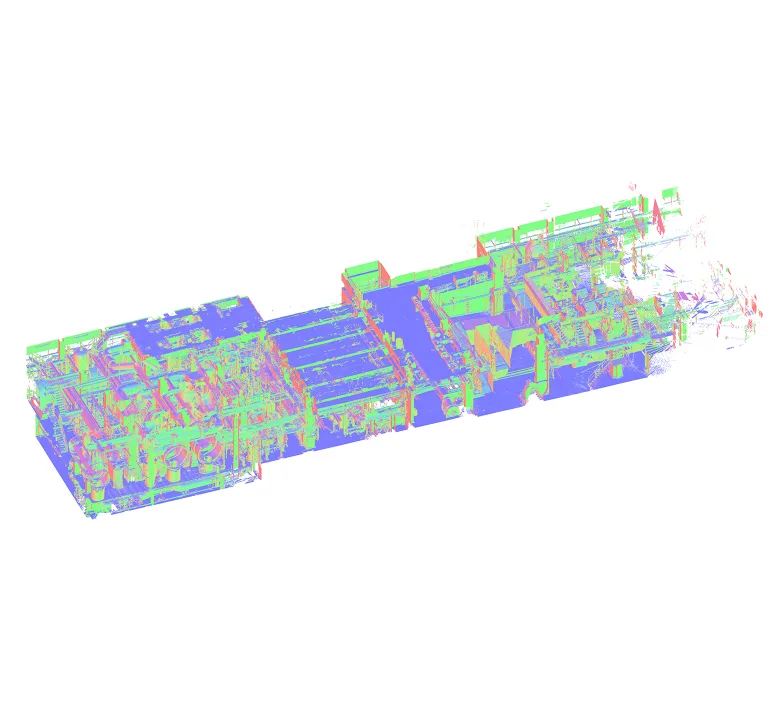
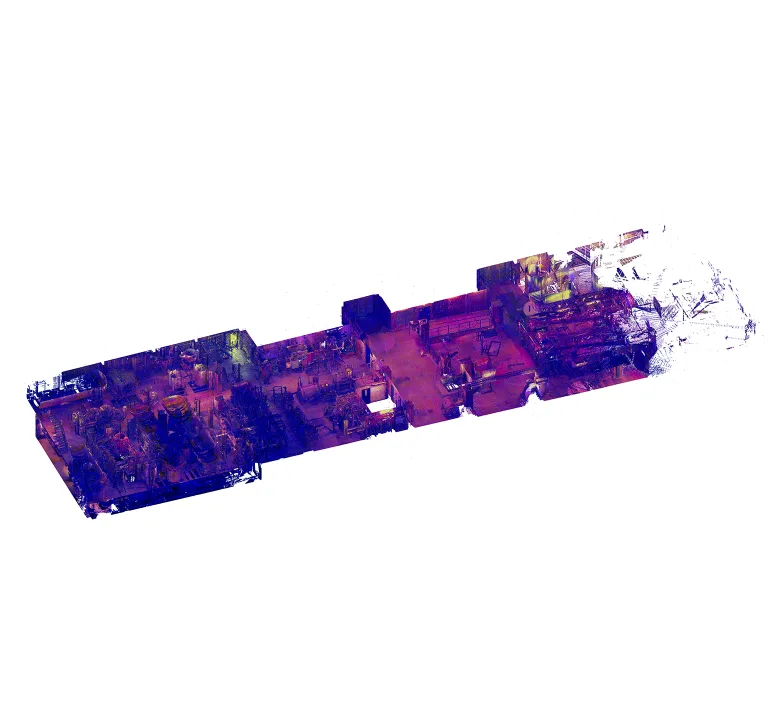
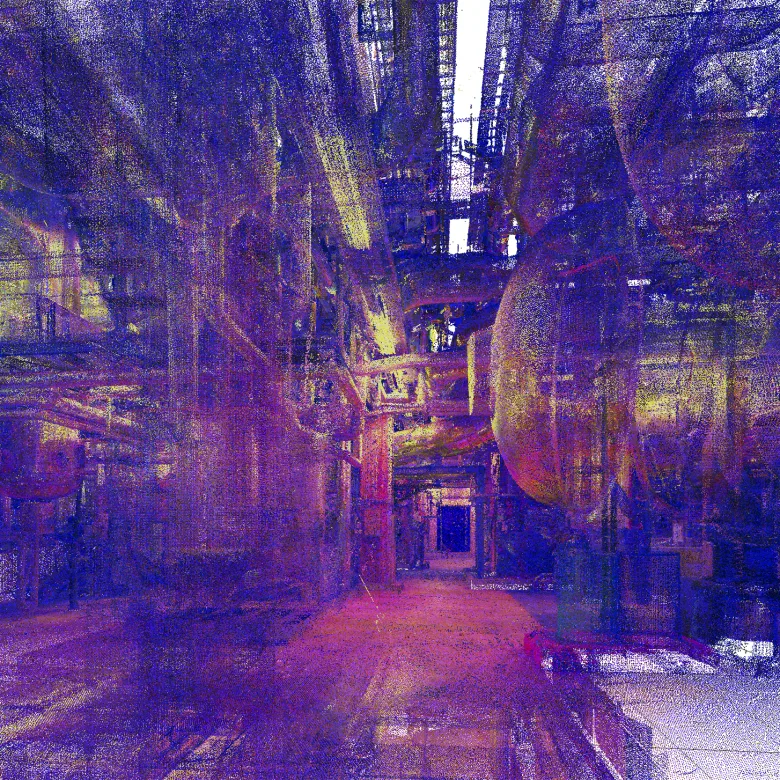
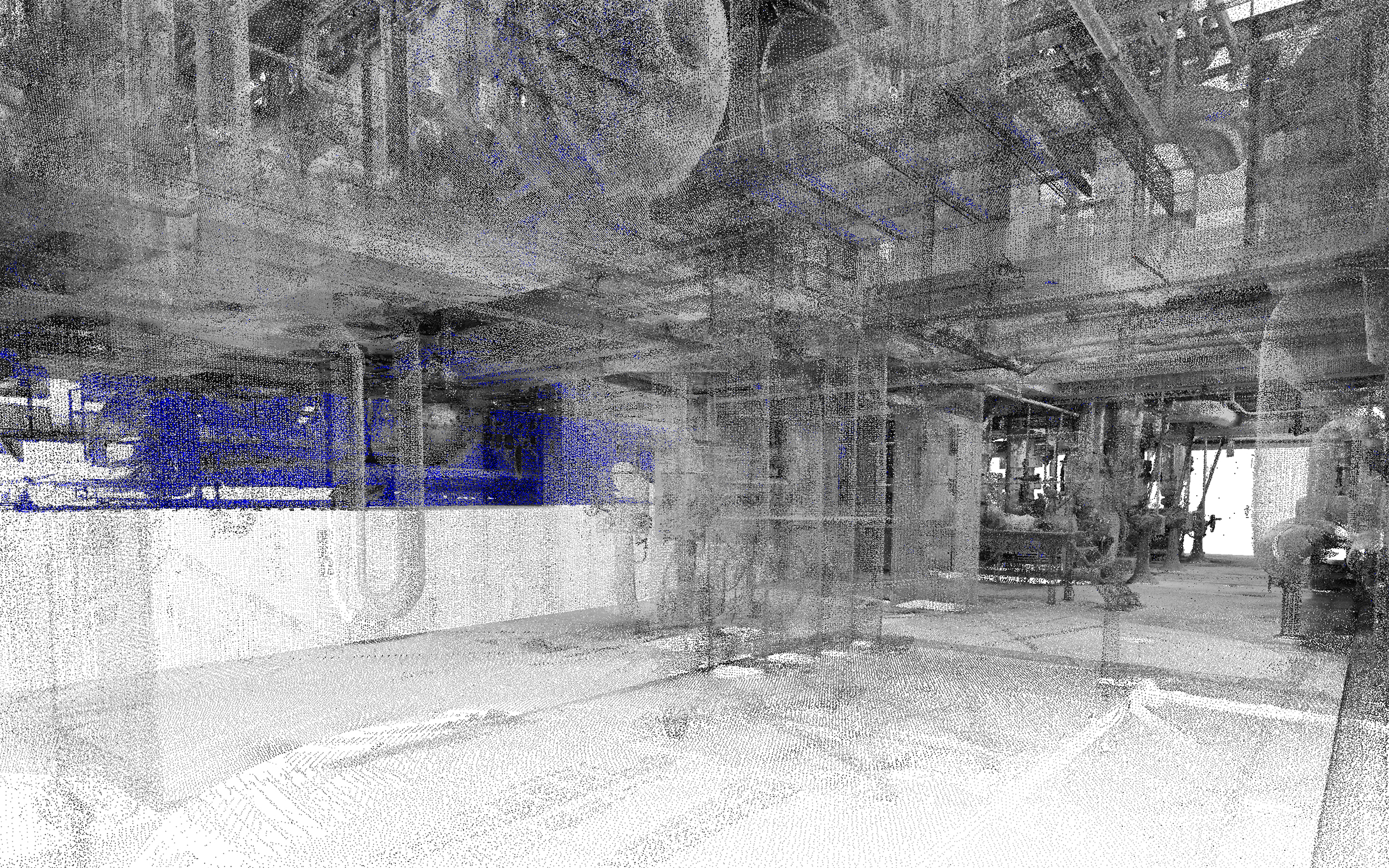
The point cloud data was difficult to interpret due to low lighting conditions during scanning, inconsistent color information, visual noise, and areas where elements blended together. This was especially challenging in an industrial facility with a high density of equipment and MEP systems.

Since the project scope excluded equipment and MEP, ORIGIN carefully analyzed the scan data to identify only the architectural and structural elements required for the model. This helped keep the Revit model clean, focused, and aligned with the client’s project requirements.

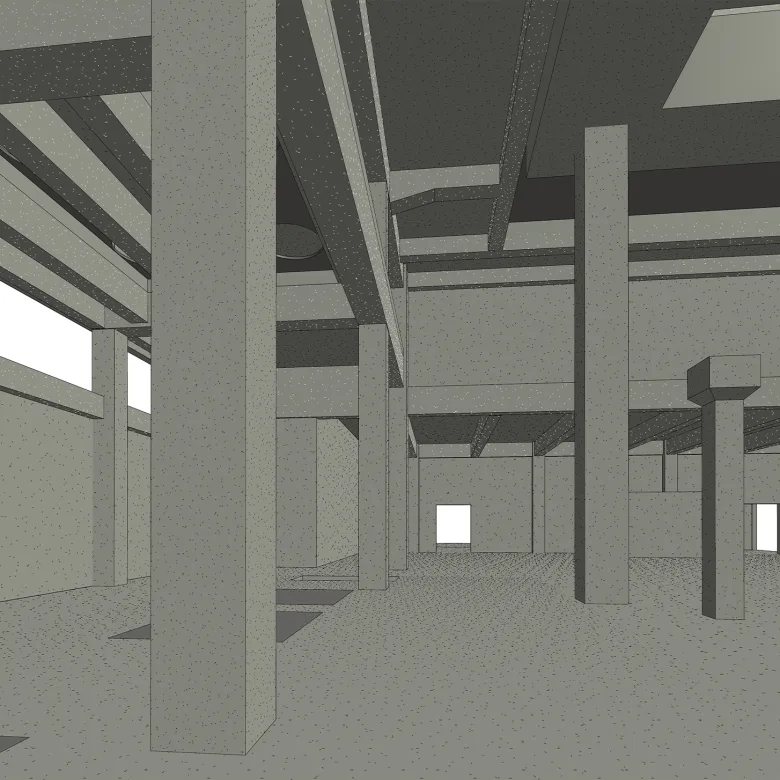
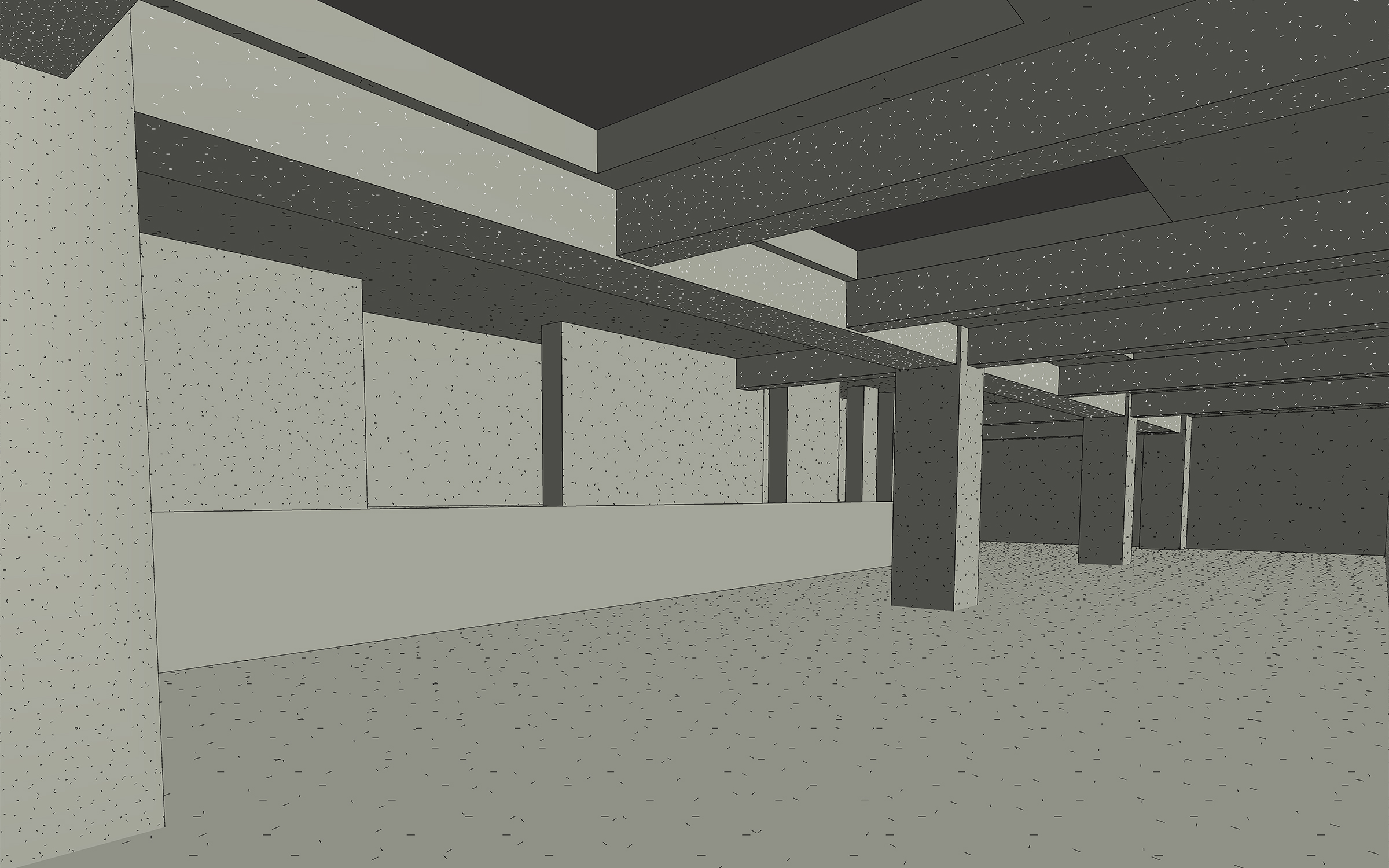
Point cloud vs model

Distinguishing structure from MEP

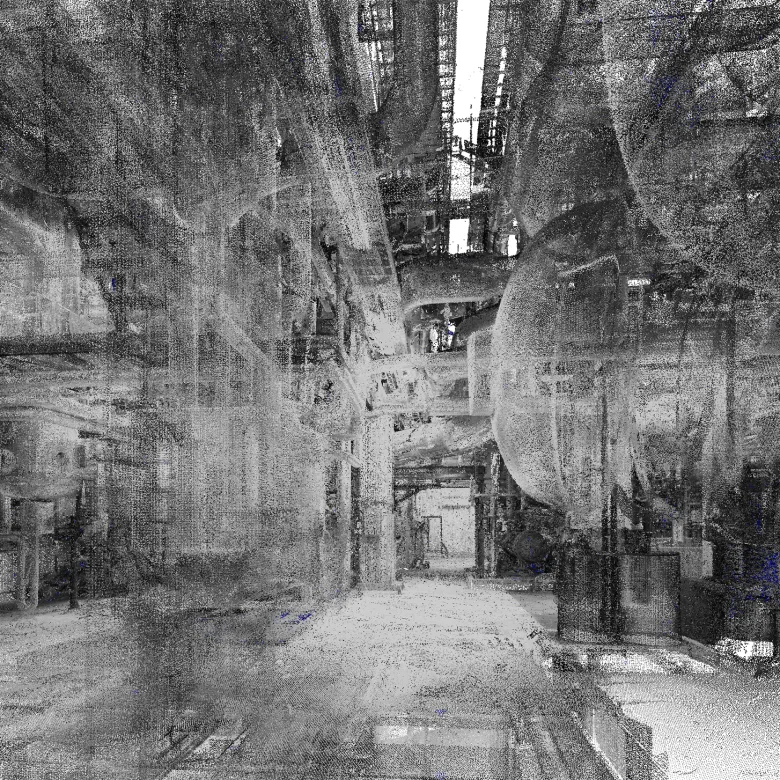
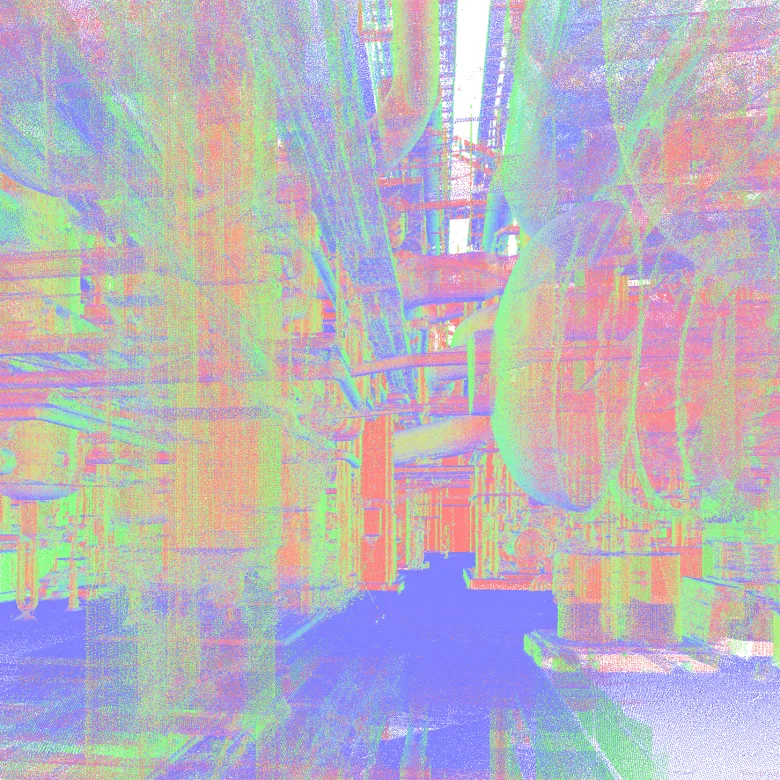
One of the main challenges was separating the required architectural and structural elements from the dense MEP and equipment environment captured in the point cloud. Since these systems were outside the project scope, the team had to carefully identify which elements belonged to the building structure and which should be excluded from the final model.

To support this process, ORIGIN used different point cloud visualization modes, display filters, and 360° photos to verify spatial conditions. This helped maintain a clean, focused Revit model while accurately representing the facility’s walls, slabs, columns, beams, openings, and other required building elements.

1
1
1
1
Point cloud vs model
1
1

Structural modeling

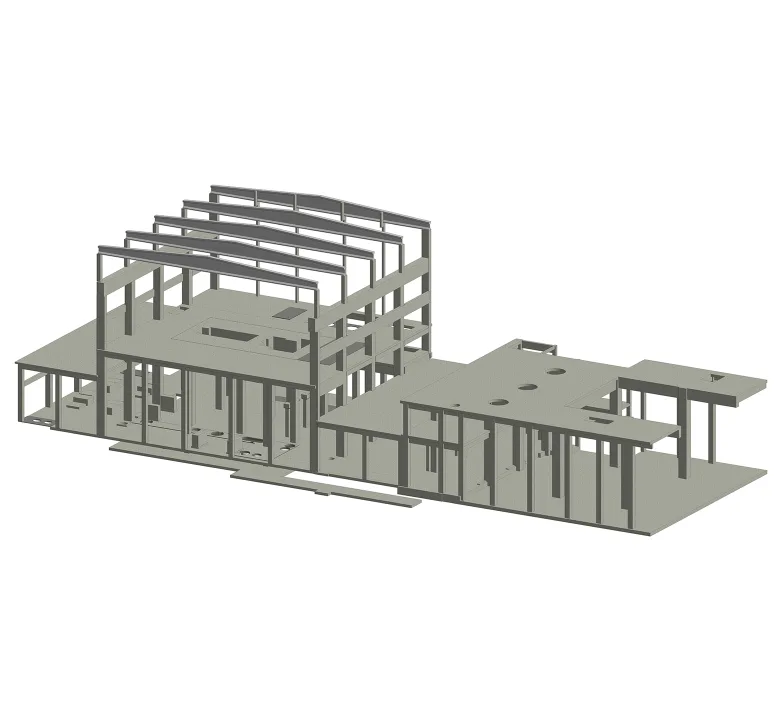
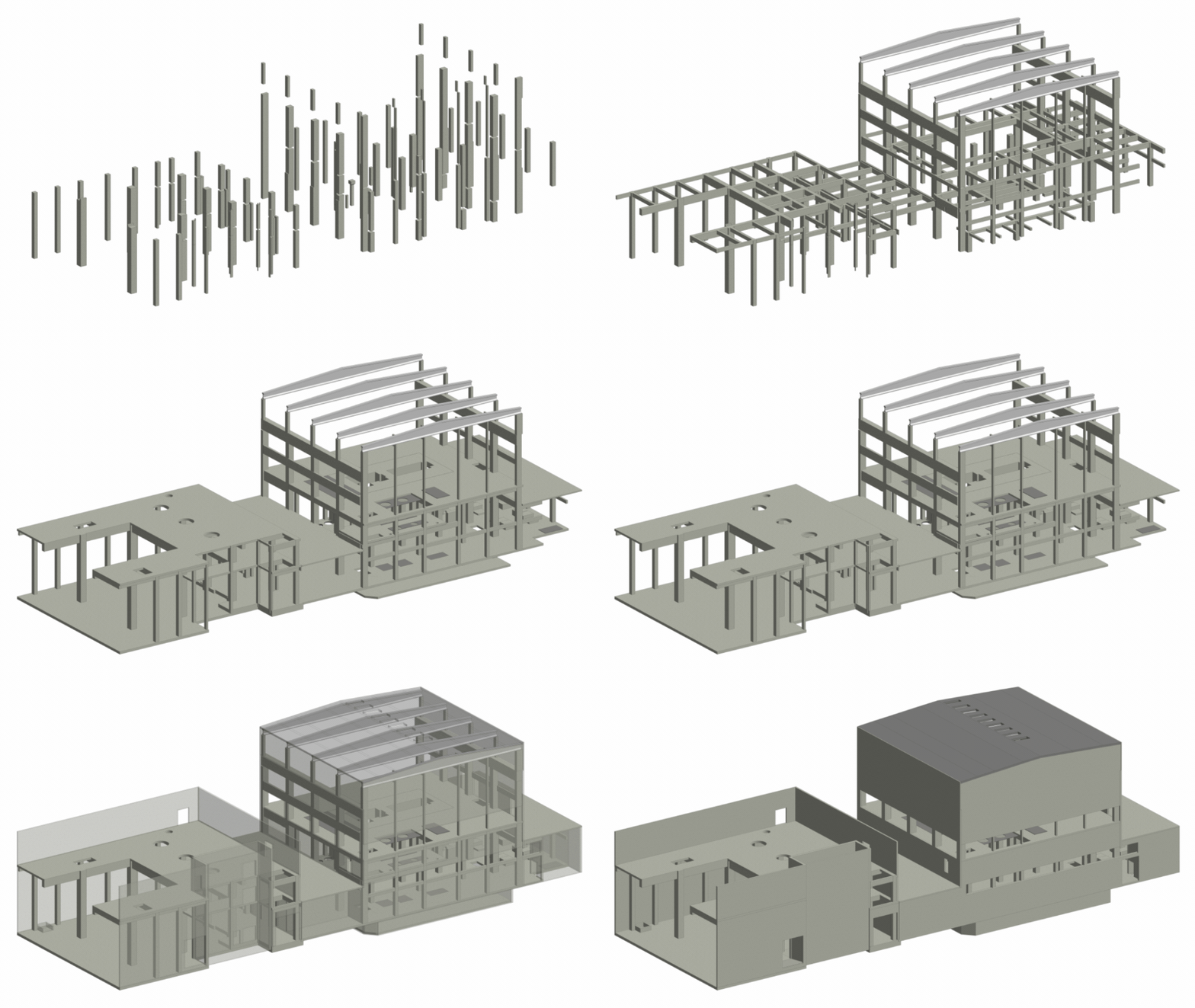
During the modeling process, ORIGIN used structured BIM categories for columns, beams, slabs, and other load-bearing elements to keep the Revit model consistent and easy to navigate.

Some beam elements had non-standard geometry that could not be accurately represented with standard Revit families. To model these conditions properly, the team developed a custom beam family, allowing the structural frame to reflect the actual configuration captured in the point cloud.

Structural assembly sequence


Benefits
Precise as-built 3D model developed from point cloud data and supporting documentation
Clear representation of the facility’s architectural and structural elements
Clean model scope, with equipment and MEP systems intentionally excluded according to project requirements
Reliable digital basis for future renovation, coordination, and project development
Tools used
1
Autodesk Revit
1
Autodesk ReCap
view project view more view photos